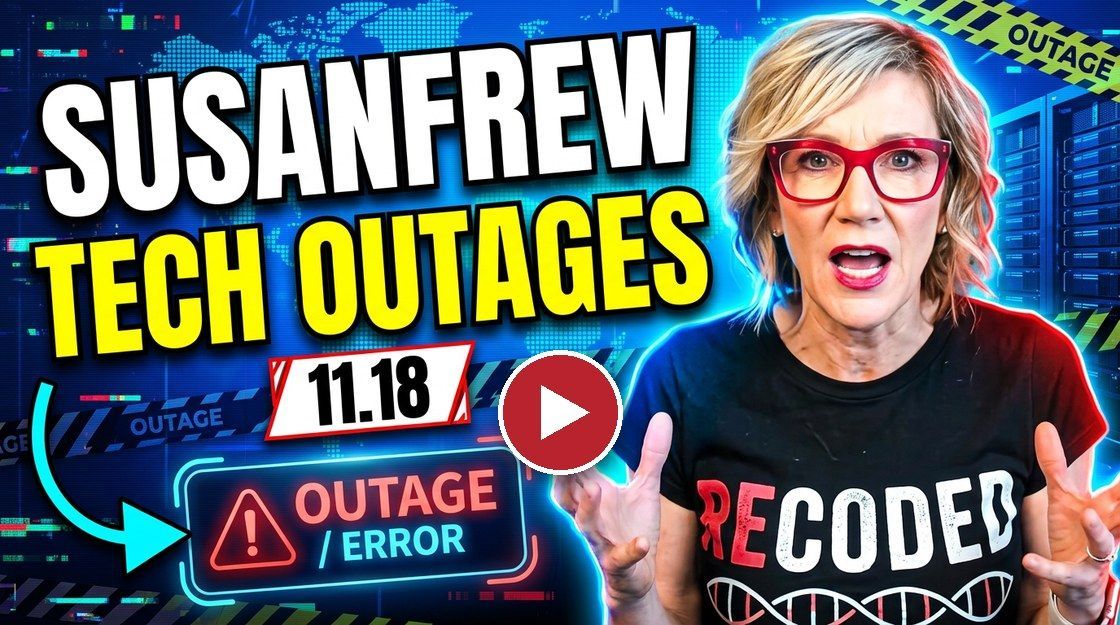
Microsoft 365, the FAA, Chase and Apple all went down in eight days, and none were hacks. Here's the small business lesson and a free AI prompt for your Plan B.
Your next customer is probably already in your files. Export your list, let AI find who went quiet, and send a personal note in 15 minutes. Free prompts inside.
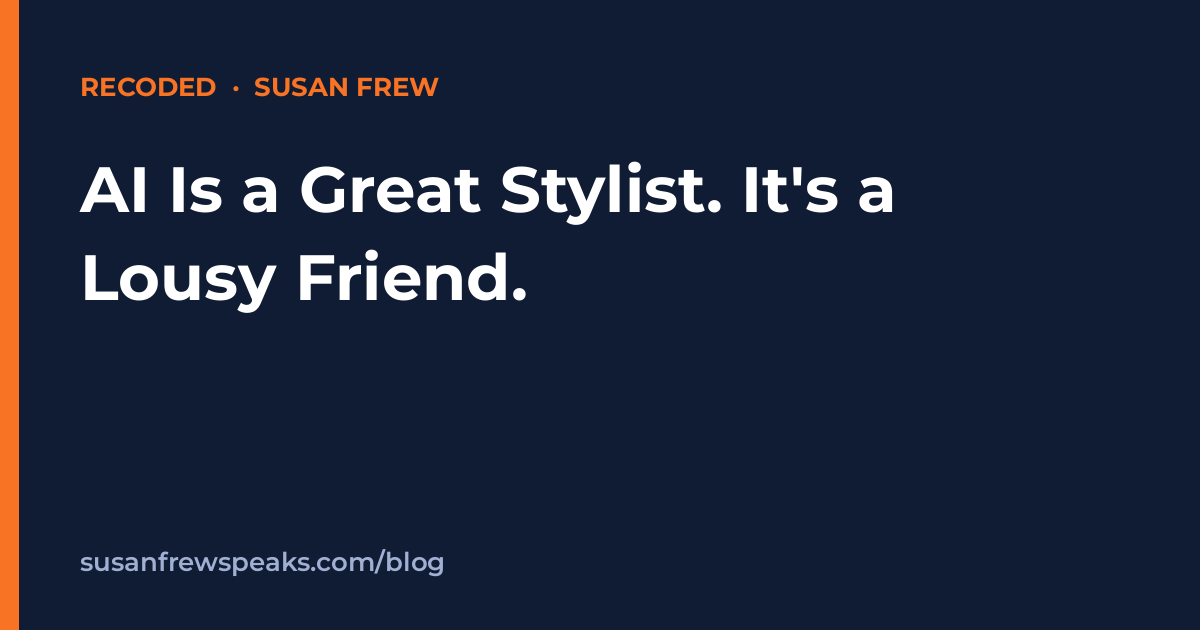
My AI gave me a 10 out of 10 on an orange jacket. Here's why that worries me, what the JED Foundation research shows, and a free 20-minute AI stylist handout.
ChatGPT, Claude, Gemini, and Copilot already live in your browser. Here is how to use them on your open tabs, plus official links and a free cheat sheet.
OpenAI, Google, and Anthropic all shipped in eight days. Here is who gets Dots, Gemini 4 Argon, and Claude Sonnet 5.5 on each plan, plus a free cheat sheet.
I built an AI org chart with 11 named agents. Two are already live, and a human still checks everything. Here's the six-line job description and a free worksheet.
A researcher resigned from Anthropic, a DeepMind researcher followed, and Dario Amodei published a new essay. Here are the facts, sources, and what I would do.
Google expanded Gemini custom instructions across Workspace. Tell it who you are once, and it uses your voice in Gmail, Docs, Drive, Chat, Sheets, and Slides.
Claude in Chrome can now act on its own, with a safety check on every click. Here's how to try it carefully, flip the toggle, and keep control of the keys.
Google built a Record button into Slides through Google Vids. Talk through a deck, fix flubs in the transcript, and send a shareable video with no extra software.